

Getting Started
Your first steps with V.connct — navigating the interface and understanding key concepts.
First Login
Your account may first show welcome/setup steps for your profile, phone verification, organization, and invitations. Complete the steps shown for your account, then open Home in the App Section for meeting activities.
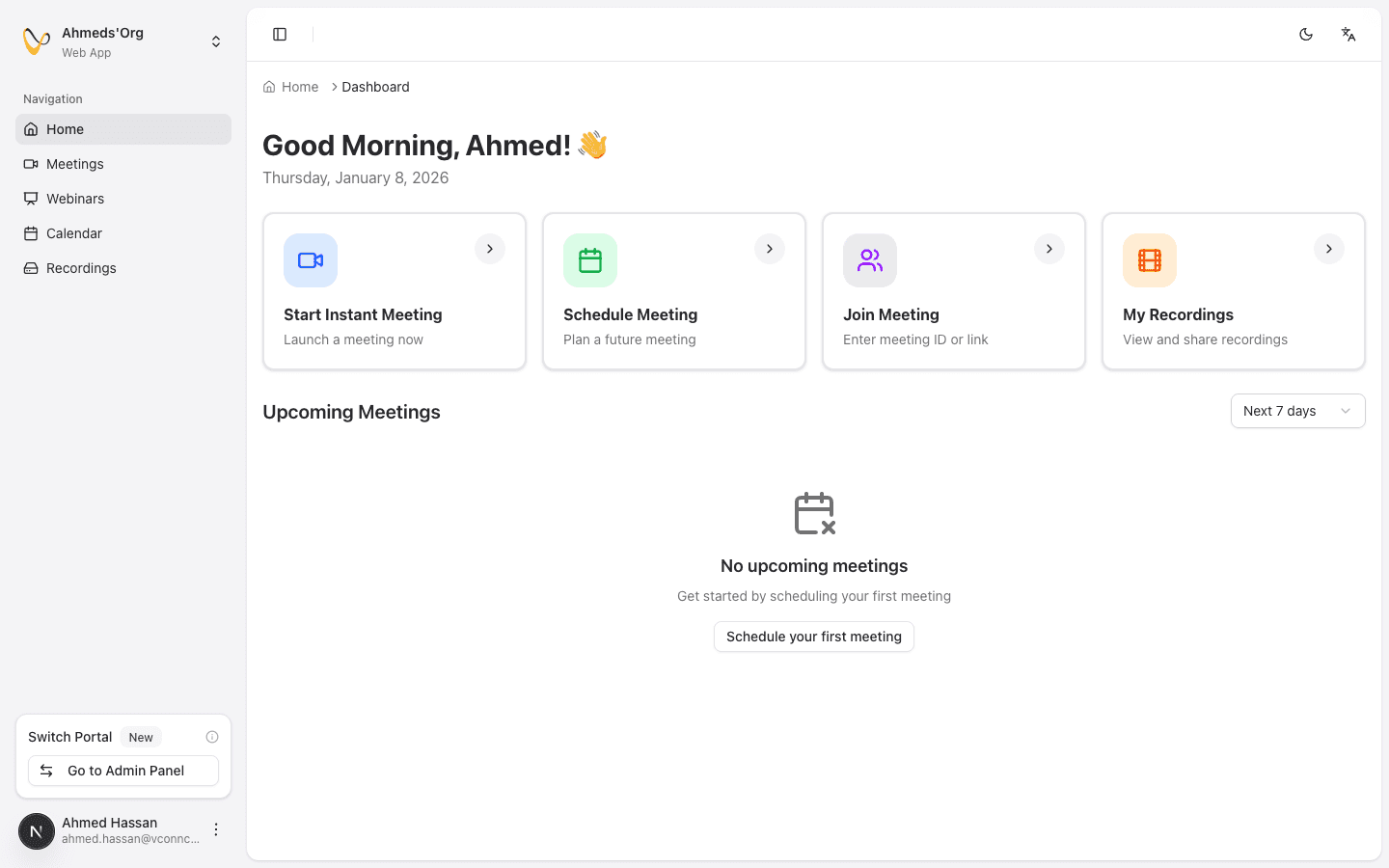
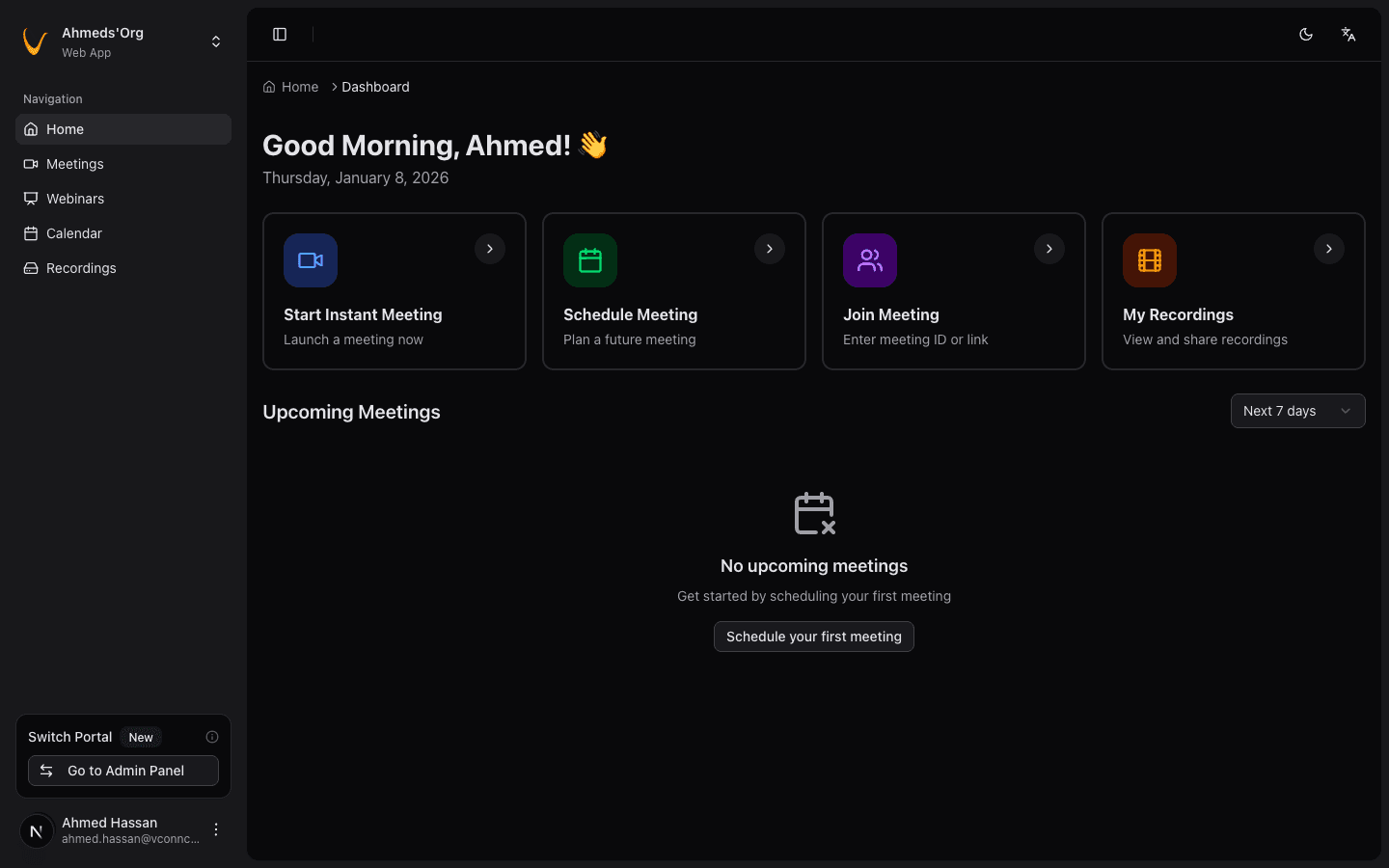
Review your dashboard
The Home page shows quick action buttons and your upcoming meetings. Take a moment to familiarize yourself with the layout.
Check the sidebar
The left sidebar provides navigation to all main sections: Home, Meetings, Calendar, and Recordings.
Set up your profile
Open your profile/avatar menu and select Account to add your profile picture and update your information.
The Interface
Sidebar Navigation
The sidebar on the left contains your main navigation:
| Section | Purpose |
|---|---|
| Home | Quick actions and at-a-glance schedule |
| Meetings | Full meeting list with filtering and management |
| Calendar | Visual calendar with all your meetings |
| Recordings | Access to your recorded meetings |
At the bottom of the sidebar, you'll find:
- Your profile avatar (click to access Account settings)
- Organization switcher (if you belong to multiple organizations)
- Portal toggle (for Owners/Admins to switch to Admin Panel)
Home Page
The Home page is designed for quick access to common tasks:
- Quick Actions — Buttons to instantly start, join, or schedule a meeting
- Upcoming Meetings — Your next scheduled meetings at a glance
- Recent Recordings — Quick access to your latest recordings
Header Bar
The top header provides:
- Search functionality
- Notifications
- Organization context
Key Concepts to Know
Meetings vs Rooms
In V.connct, meetings and rooms are different concepts:
- Meetings are scheduled or instant sessions with specific start times and participants
- Rooms are persistent spaces created by admins that can host multiple meetings over time
Most users work with meetings directly. Rooms are optional and managed by organization admins.
For more about rooms, see Understanding Rooms in the Admin Guide.
Your Role in Meetings
Inside a meeting, your Host, Moderator, Presenter, or Attendee role and the host's settings determine your available controls.
Your meeting role is separate from your organization role (Owner, Admin, Member).
Learn about meeting roles and permissions →
Meeting Status
Meetings move through different statuses:
| Status | Meaning |
|---|---|
| Scheduled | Future meeting, hasn't started yet |
| In Progress | Meeting is currently active |
| Ended | Meeting has finished |
| Cancelled | Meeting was cancelled before it started |
What You Can Do
As a user, you can:
- Join meetings you're invited to
- Start instant meetings for quick calls
- Schedule meetings for later with participants
- Use the calendar to view and manage your schedule
- Access recordings allowed by the selected organization's recording workflow
- Update your profile and preferences
What you can't do
Some features are only available to Owners and Admins in the Admin Panel:
- Create rooms
- Invite new members to the organization
- Manage billing and licenses
- Delete recordings as an organization Owner or general Admin
See the Admin Guide for these features.
Next Steps
Ready to get started? Here's what to do next:
- Join your first meeting — Learn the different ways to join
- Start an instant meeting — Try starting a quick meeting
- Schedule a meeting — Plan a meeting for later
- Explore in-meeting features — See what you can do during meetings
Last updated on