

Getting Started
A checklist for new admins to set up their organization and get their team onboard.
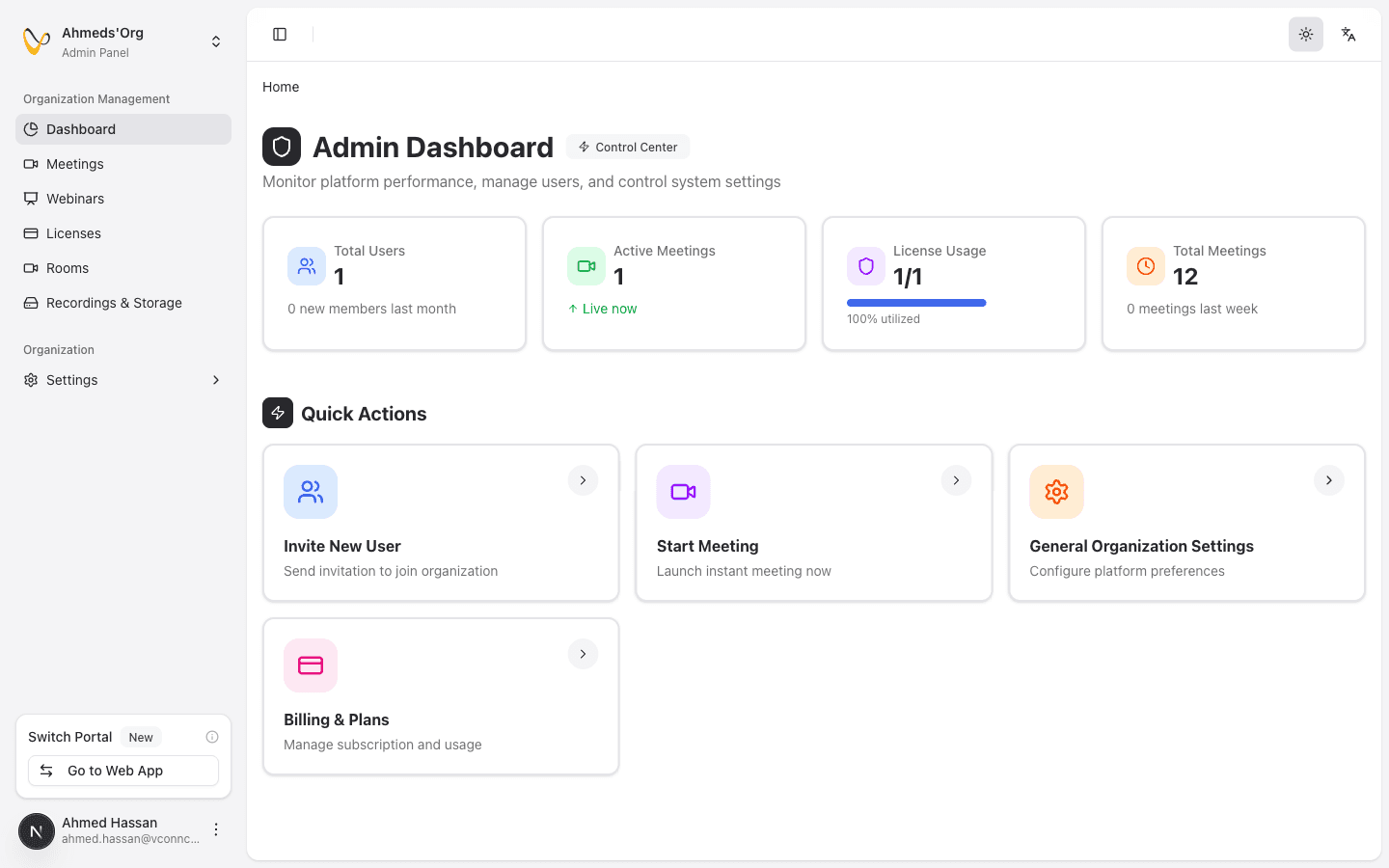
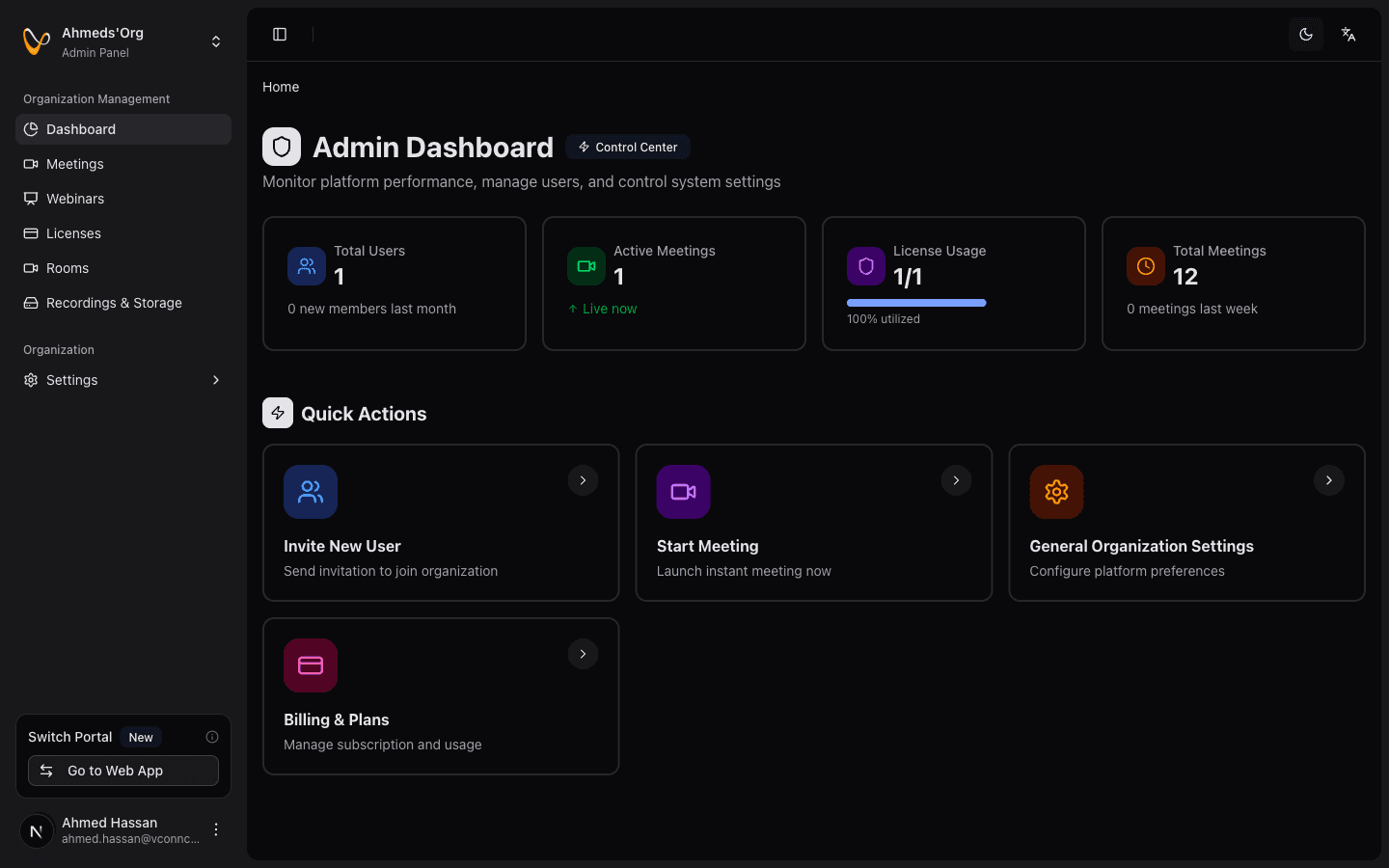
Accessing the Admin Panel
Navigate to Admin Panel from the sidebar. If you don't see this option, you may not have admin permissions in the current organization.
First-Time Setup Checklist
Set Up Your Organization Identity
Give your workspace a recognizable name and logo so team members know they're in the right place.
- Go to Admin Panel → Settings → General
- Update your workspace name (e.g., "Acme Corp" instead of "John's Organization")
- Upload your organization's logo
- Add a description if helpful
Choose Your Plan
If you're on the Free plan, consider upgrading to unlock more features and capacity.
- Go to Admin Panel → Settings → Plans & Billing
- Review available plans and pricing
- Select a plan that fits your team size and needs
- If a trial is offered to your organization, review its displayed duration, eligibility, and included capacity before starting
Invite Your Team
Add the people who will be using the platform.
- Go to Admin Panel → Settings → Members
- Click Invite Member
- Enter email addresses and choose roles; multiple rows and bulk import are supported
- Send the invitations and review any row-level errors
Create Rooms (Optional)
If your team holds repeated sessions or you want persistent meeting links, set up rooms.
- Go to Admin Panel → Rooms
- Click Create Room
- Configure room settings (waiting room, passwords, etc.)
- Share the attendee link with participants; keep the moderator link private
Rooms are optional. Your team can create meetings without rooms. Rooms are useful when you want a persistent link that doesn't change between meetings.
Understand Your License Capacity
Know how many meetings your organization can run simultaneously.
- Go to Admin Panel → Licenses
- Review your current license count and usage
- If you need more concurrent meetings, add licenses in Plans & Billing
Quick Tour of the Admin Panel
Dashboard
Your starting point. Shows key metrics at a glance:
- Total users in your organization
- Active meetings right now
- License utilization
- Recent meeting activity
Meetings
View all meetings across your organization. Filter by status, search by host, and see what's scheduled.
Rooms
Create and manage persistent meeting spaces. Each room has its own link and settings.
Recordings
Access all cloud recordings from your organization. Monitor storage usage.
Licenses
See your license pool in action — how many are in use, what meetings are running, and your capacity.
Settings
- General — Organization name, logo, description
- Members — Invite, remove, and manage team members
- Plans & Billing — Subscription, licenses, add-ons, invoices
What's Next?
Once your organization is set up, your team can start using the platform:
- Admins can continue managing the organization through the Admin Panel
- Members will use the App Section to create and join meetings
For help with using meetings and features (not admin tasks), see the User Guide.
Common First Questions
How do I switch between organizations?
If you belong to multiple organizations, use the organization switcher in the top navigation. Each organization has its own plan, members, and settings.
Can I make someone else an admin?
As Owner or general Admin, choose a role when inviting a member. Contact support to change an existing member's role. See Roles and Permissions.
What if I need help with migration?
If you're coming from an older version of the platform and something wasn't migrated correctly, contact support. They can help resolve any subscription or data issues.
Last updated on